Sharing Studies
Sharing in ODM enables you to allow people in specific groups to view datasets that you upload (i.e. own), and is typically done once you have curated the study.
Sharing from the Study Browser
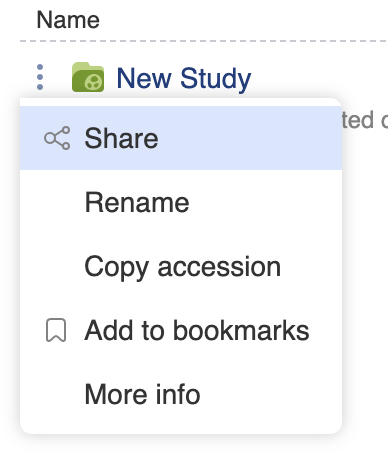
The three dot button next to any study name opens a menu which allows you to select Share.
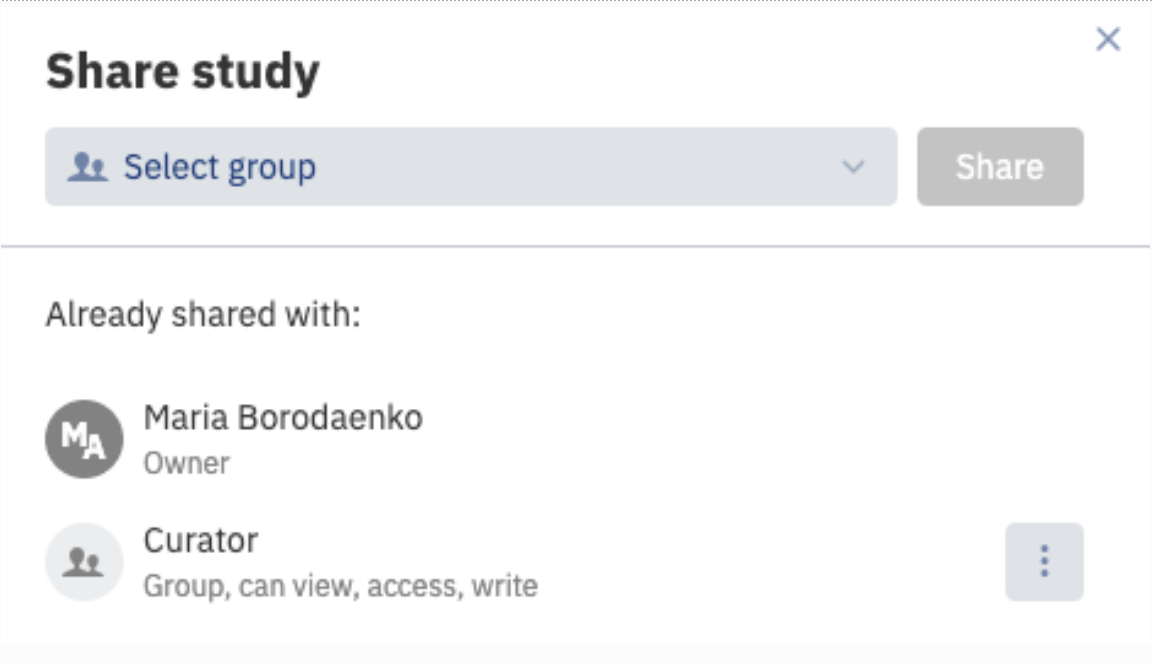
You see who already has access to the study and will be prompted to choose which group of users to share the study with, then click the Share button.
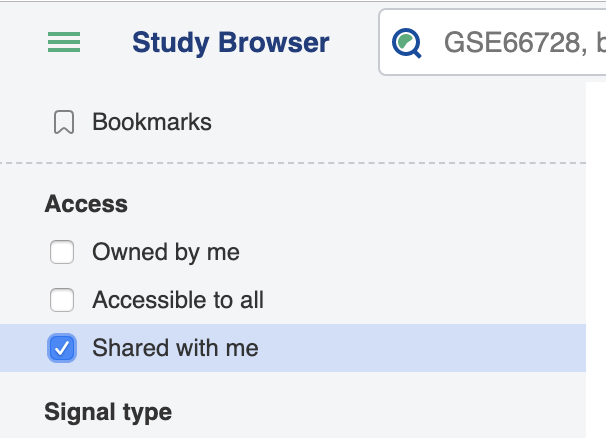
Members of this group will now be able to view this study using the Shared with me filter:
Sharing from the Metadata Editor
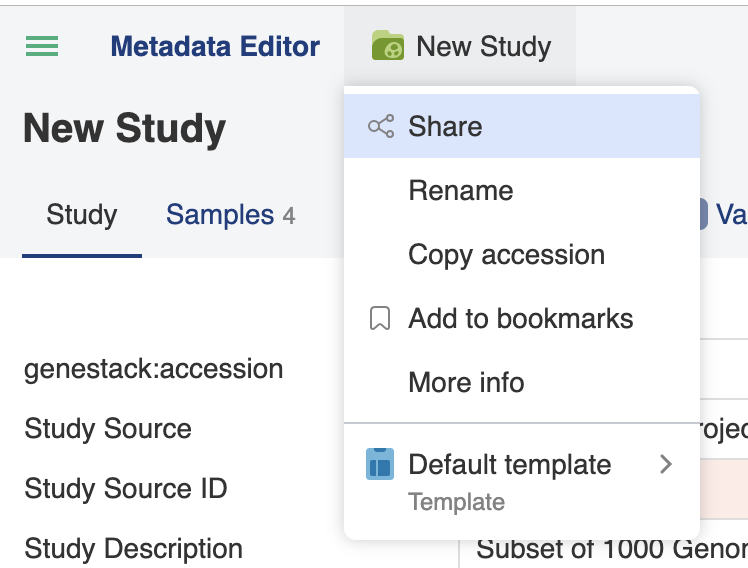
Sharing from the Metadata Editor is similar to the above, except that to access the sharing menu you must click on the name of the study/folder icon at the top of the page:
Changing Permissions Without Ownership
Only the study owner can share/unshare study in ODM. At the moment, changing the ownership of a study is not natively supported through the user interface.
However, this guide provides a soft workaround using administrative access.
Prerequisites
- An account with “Manage Organization” permissions (e.g., the
rootuser). - This account must not use SSO as the login method — since ODM prompts for a password when resetting another user's password.
If SSO is used, the account has no set password and cannot be used for this workaround. Use the root account instead.
Step-by-Step Workaround
-
Log in as an Admin
Sign in to ODM using an account with “Manage Organization” rights. -
Access User Management
Open the admin panel:
https://<HOST>/ui/admin/users -
Reset the Study Owner’s Password
- Find the user who owns the study.
- Click the ⋮ menu next to their name.
- Select “Change password”, and set a temporary one.
-
Ensure the Study Owner is Active
If the user is deactivated:- Open the ⋮ menu again.
- Select “Activate”.
-
Log in as the Study Owner
- Log out of the admin account.
- Log in with the study owner's credentials using the temporary password.
-
Access the Study
Open the study either via:- The Study Browser, or
- A direct URL, if known.
-
Adjust Permissions
- Click the green folder and study name (top-left).
- Select “Share”.
- Share/unshare study as needed in the pop-up window.
Note: Once sharing settings are updated, you may choose to inform the original owner or reset their password again.